

Telegram
Telegram is the quickest to set up. You’ll create a bot through Telegram’s BotFather and connect it to your agent.- Open Telegram and message @BotFather
- Send
/newbotand follow the prompts to create your bot - Copy the bot token BotFather gives you
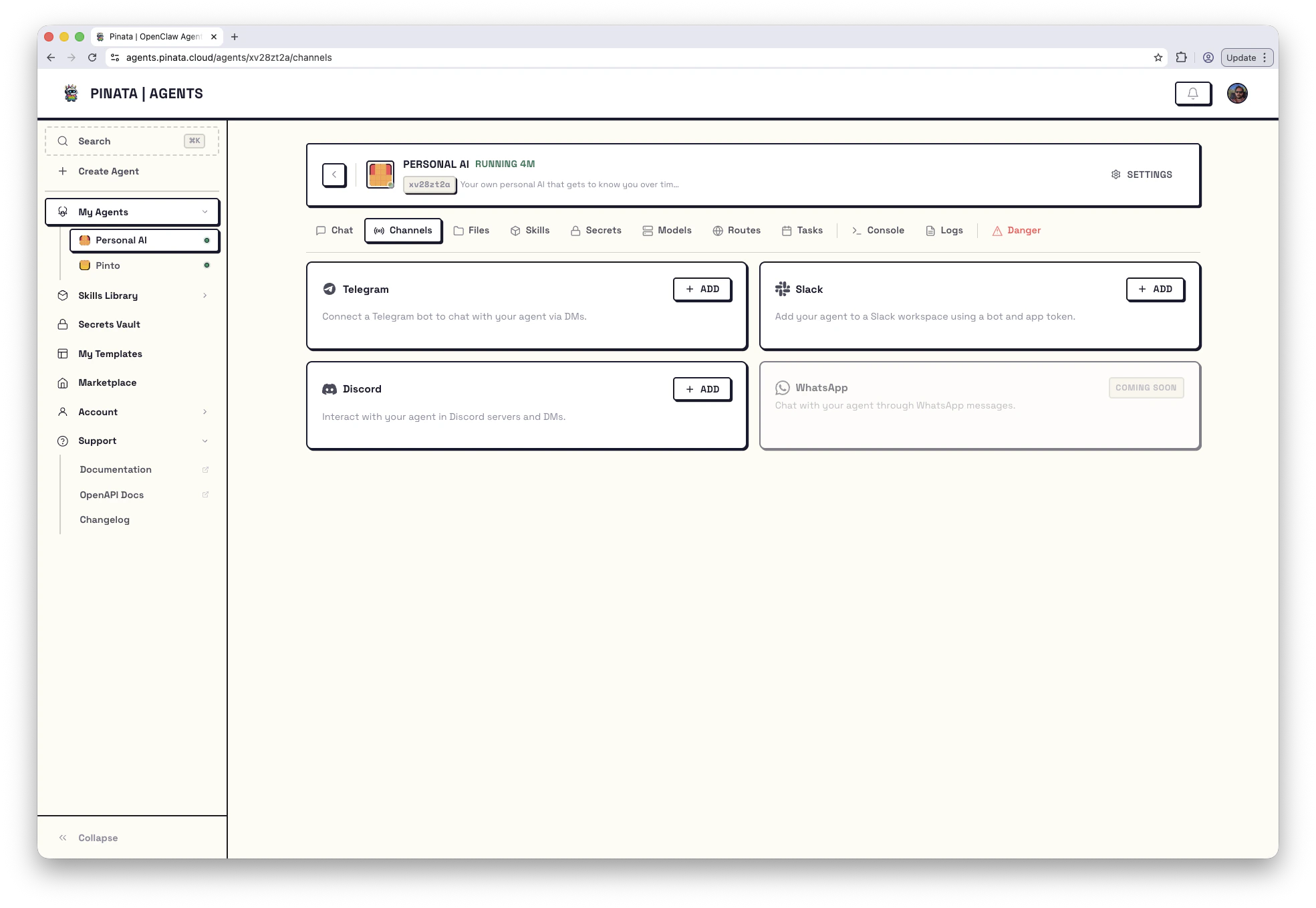
- In Pinata, open your agent → Channels and click + ADD on the Telegram card
- Paste your bot token and save
Controlling Access
By default, your bot is open - anyone can message it. If you want to restrict access:- DM policy - Switch from “open” to “pairing” mode, which requires users to be approved before they can chat
- Allow list - Only specific Telegram user IDs can message the bot
Slack
Slack takes a few more steps because you need to create a Slack App with the right permissions.- Go to api.slack.com/apps and create a new app
- Enable Socket Mode (under Settings)
- Create an App-Level Token with the
connections:writescope - Under OAuth & Permissions, add these bot token scopes:
chat:write,im:write,im:history,im:read,users:read,app_mentions:read
- Install the app to your workspace
- In Pinata, open your agent → Channels and click + ADD on the Slack card
- Paste both tokens:
- Bot Token - starts with
xoxb- - App Token - starts with
xapp-
- Bot Token - starts with
- Save
Discord
Discord setup is similar to Telegram - create a bot, get a token, connect it.- Go to discord.com/developers and create an application
- Go to Bot → Add Bot
- Copy the bot token (you may need to reset it to see it)
- Go to OAuth2 → URL Generator
- Select the
botscope - Select the permissions your bot needs
- Select the
- Copy the generated URL and open it to invite the bot to your server
- In Pinata, open your agent → Channels and click + ADD on the Discord card
- Paste the bot token and save
Managing Channels
Once connected, channels show a green ENABLED badge along with a summary of your configuration (DM policy, masked token). You can:- Reconfigure to update settings (leave token fields blank to keep existing values)
Changes to channels take effect after a gateway restart.